Useful Tips For Living with the Windows NT Interface
The following are a collection of tips and tricks I have discovered for living with the less-than-stellar Windows NT interface. Some of this is specific to the SDSC systems but most is not. Corrections and suggested additions are always welcome.
General Interface:
1. Right Click, Right Click, Right Click: Right clicking is so central in Windows that it is worth wildly right-clicking almost everything in sight, just to see what is possible. If you are ever in doubt as to how to make something happen, try right clicking on the entities in question. Often you will get a pop-up menu that fits the bill. Right clicking also can speed up your work by allowing you to perform common functions without going up to the menu bar for the application you are using. For example, you can copy and paste using right clicking, without having to go to the menu bar and select Edit>Copy, etc.
2. Use Tab to Move Though Sequential Dialogue Box Entries: This is a minor point but it sure speeds things up, particularly when filling out web forms and the like. The Tab key will move you to the next box in almost any form. To move backwards, use Shift+Tab. Try this in your next Windows login, for example.
3. Populate Your Desktop With Shortcuts Rapidly By Stealing from the Start Menu: It is helpful to put shortcuts for all commonly used applications on the Windows desktop. A time-saving way to harvest these is by plundering the Start Menu folders, in C:\WINNT\Profiles\All Users\Start Menu\Programs\Applications (Common), and C:\WINNT\Profiles\your_user_name\Start Menu\Programs. Just copy all needed shortcuts out of these directories and dump them on the desktop.
4. Use Task Manager to Clear Crashed Programs and Diagnose Your System: Task Manager is useful but hard to find in WinNT. It is activated by right-clicking on the task bar and selecting Task Manager from the menu. The Applications tab is useful for surveying running programs and clearing crashed programs that refuse to close completely. Crashed programs can be cleared by selecting them and choosing End Task. The Performance Tab is useful for general system diagnosis. The Processes tab is useful for determining what is causing system problems. For example, if your system is running out of memory, you can sort processes by memory usage by clicking on the MemUsage tab and seeing who the memory hog is.
File Management:
1. Use Windows Explorer Instead of the “My Computer” Window Proliferation to Navigate the File System: The My Computer dialogue is a clumsy way to get through a file system. Windows Explorer, with its dual-pane interface and clear file hierarchy, will allow you to work much more efficiently.
2. Fix the Horrid Default Settings in Windows Explorer: The default settings in Windows Explorer are an excellent example of true interface malpractice. These are set to hide critical information (such as file extensions) from the user, which can only lead to confusion. Open Windows Explorer and go to View>Options and change the settings to as shown below:
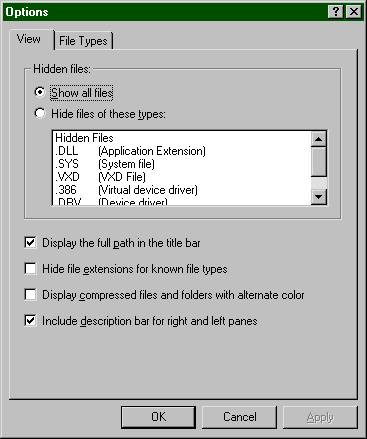
Windows Explorer will now be much more helpful tool. These settings will also propagate to all other file dialogues in Windows, so you won’t have to set them again. An additional suggestion is to set Windows Explorer to show details by going to View>Details.
3. Open Files in Non-Default Programs Using the Send To Folder: Windows establishes a default program for opening files with a given extension (ex. .txt files are opened in notepad). Often, this is not the program you actually want to use. One way to use the program you want is to open the program and then hunt down the file using the program’s file dialog. A much better way is to right click and use the Send To folder to send files directly to your chosen application. To do this, add shortcuts for your common apps (notepad is an essential one to add) to the Send To folder which is in C:\WINNT\Profiles\your_user_name. Now, right click on a file, go to Send To, and choose an application to open the file in.
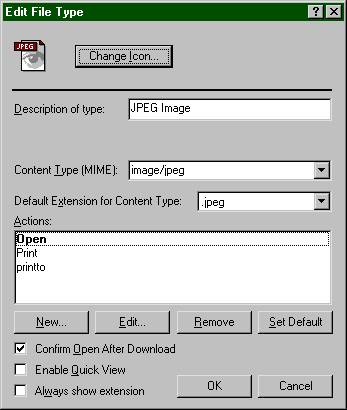
4. Managing the File Defaults: Another way to deal with the Windows defaults for certain file types is to change them directly to a program you prefer. This can be done by going to View>Options in Windows Explorer and clicking on the File Types tab. This will give you the following dialogue:

To change a file type’s default application, go to the file type and click the Edit button, which gives you this dialogue box:
Now click on Open and then Edit to get this dialogue box:
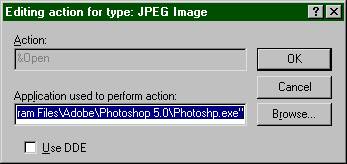
You can now browse to select the application that you would like to use as the default for opening this file. You must select the actual .exe file (executable program) for it to be accepted. You can alter the icon that will be displayed beside the file by clicking on the Change Icon button in the Edit File Type dialogue above, and browsing for the icon you would like, but the icon is just for show. The internal settings determine the default program, not the icon (that way things are extra confusing for the user!). A big storehouse of standard windows icon files are located in a folder in C:\WINNT\Installer\, at least in my system. Many programs also have an embedded icon in their .exe file, so that if you select the same .exe file (the one you chose in the Editing action for type: dialogue above) while in the icons dialogue, you can grab an icon that goes with your new default program.
This process isn’t very easy, but hey, don’t kill the messenger…
5. Select Multiple Files in Most File Dialogues by Using the Shift and Ctrl Shortcuts: You can select multiple individual files while holding down the Ctrl key by clicking on each file. To select an inclusive range of files, hold down Shift while clicking the first and last files in your chosen range.
6. Map the Samba Server as a Drive in Windows Explorer: Mapping the Samba server as a windows drive will allow you to conveniently move files in and out of unix. Go to Tools>Map Network Drive and in the Map Network Drive dialog chose your drive letter (it usually will be F:). In the Path box enter \\Samba3 and hit enter. You should see your home directory name in the path window. Click OK and you’re done. Samba can now be accessed alongside your other drives in Windows Explorer.
Software:
1. Tame MS Word’s attempts to wreck your document formats: Word tries to guess where you should have numbered lists, and how they should be numbered. The result is almost always disaster. Turn this off by going to Tools>AutoCorrect>AutoFormat As You Type and uncheck the box for Auto Formatted Lists. It may also be a good idea to turn off Automatic Bulleted Lists, and some of the Replace As You Type options while you are here, depending on your preferences.
Internet Browsing (Not Really Windows Specific,
but Useful):
1. Use Google for Internet Searches: This is, in the very least, the place to start any search.
2. Open Pages in New Windows to Maintain the Current Web Page: Often, it is best to follow links in separate windows while maintaining the original web page you are viewing. Do this by right clicking on the link and selecting Open in New Window. This is indispensable when navigating complex sites or viewing pages linked to a large page that is slow to render.
3. (Netscape Only) Dragging and Dropping Bookmarks: You can add bookmarks for a page simply by dragging the little bookmark by the Location bar into your Bookmarks. Very handy.
